
Centrally Deploying Outlook and Teams PWAs Using Group Policy
Step-by-step guide to deploying Outlook and Teams PWAs across your organization using Group Policy.
MICROSOFTOFFICE
12/11/20255 min read


In this article, I’ll explain how to centrally manage the distribution of the Outlook PWA and the Teams PWA.
Progressive Web Apps (PWAs) have been around for some time, and Microsoft Office also supports PWAs for their web applications, including for example Outlook Web, Word Web and Teams Web.
Let’s take a closer look at how you can enforce the installation of the Outlook PWA and the Teams PWA across your organization.
Teams & Outlook PWA Distribution
To distribute the Teams and Outlook PWAs, we use Microsoft Group Policies in a traditional on-premises environment. Alternatively, Microsoft Intune can also be used to deploy these settings.
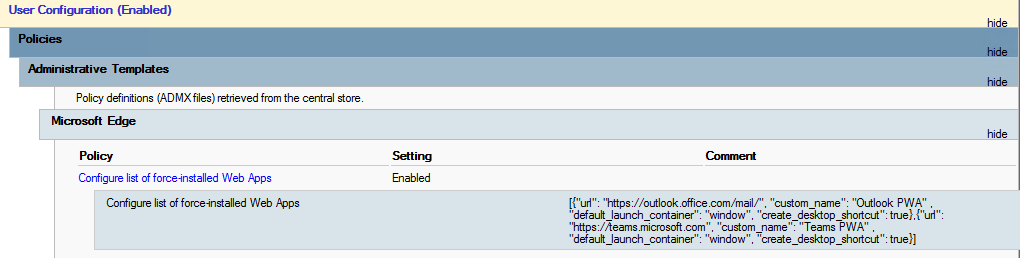
The first step is to configure the following Group Policy setting: “Configure the list of force-installed Web Apps”, located under:
User Configuration -> Policies -> Administrative Templates -> Microsoft Edge
[{"url": "https://outlook.office.com/mail/", "custom_name": "Outlook PWA" , "default_launch_container": "window", "create_desktop_shortcut": true},{"url": "https://teams.microsoft.com", "custom_name": "Teams PWA" , "default_launch_container": "window", "create_desktop_shortcut": true}]
Using the custom_name parameter, you can assign a custom name to the shortcut. By default, the shortcut is automatically created in the Start menu. If you also want the shortcut to appear on the desktop, set create_desktop_shortcut: true.
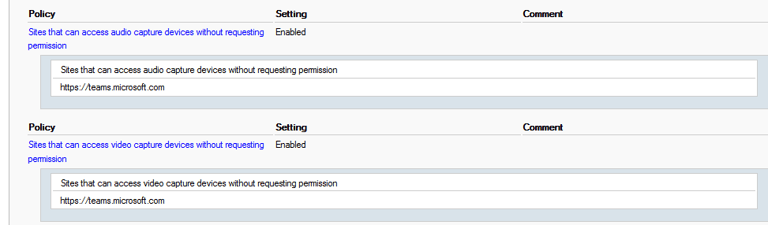
The next step is to configure Teams (https://teams.microsoft.com) to allow access to your audio and video devices.
To do this, configure the following Group Policy settings under:
User Configuration -> Policies -> Administrative Templates -> Microsoft Edge
Sites that can access audio capture devices without requesting permission
Sites that can access video capture devices without requesting permission
This ensures that Teams can automatically use your microphone and camera without prompting users for permission.
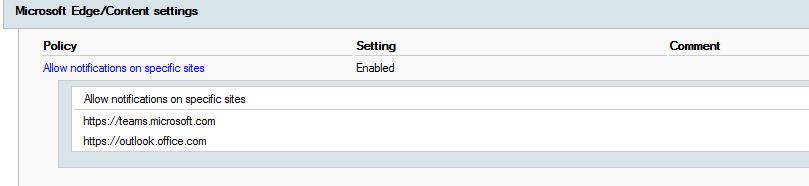
Next, you’ll want to allow Teams and Outlook to display notifications on your screen.
Configure this by configuring Allow notifications on specific sites for the following sites under:
User Configuration -> Policies -> Administrative Templates -> Microsoft Edge -> Content settings
This ensures that users receive alerts directly from the web apps.
To make the PWA available to users immediately after they sign in, you can enable Startup Boost. This feature launches Edge in the background after user sign-in, ensuring that the PWA is registered and ready to use right away.
Configure Enable startup boost under:
User Configuration -> Policies -> Administrative Templates -> Microsoft Edge -> Performance
Create a Custom Protocol Handler for Outlook PWA
This allows Windows to recognize mailto: links and open them in Outlook PWA.
You need to distribute the following user-level registry keys via Group Policy:
HKEY_CURRENT_USER\SOFTWARE\Classes\OutlookPWA
Value name: (Default)
Value type: REG_SZ
Value data: OutlookPWA
HKEY_CURRENT_USER\SOFTWARE\Classes\OutlookPWA\Application
Value name: ApplicationIcon
Value type: REG_SZ
Value data: C:\ProgramData\OutlookPWA\Outlook.ico,0
HKEY_CURRENT_USER\SOFTWARE\Classes\OutlookPWA\Application
Value name: ApplicationName
Value type: REG_SZ
Value data: OutlookPWA
HKEY_CURRENT_USER\SOFTWARE\Classes\OutlookPWA\Application
Value name: ApplicationDescription
Value type: REG_SZ
Value data: Outlook PWA
HKEY_CURRENT_USER\SOFTWARE\Classes\OutlookPWA\DefaultIcon
Value name: (Default)
Value type: REG_SZ
Value data: C:\ProgramData\OutlookPWA\Outlook.ico,0
HKEY_CURRENT_USER\SOFTWARE\Classes\OutlookPWA\shell\open\command
Value name: (default)
Value type: REG_SZ
Value data: "C:\Program Files (x86)\Microsoft\Edge\Application\msedge_proxy.exe" --profile-directory=Default --app=https:/outlook.office.com/mail/deeplink/compose?mailtouri=%1
HKEY_CURRENT_USER\SOFTWARE\Classes\OutlookPWA\shell\runas
Value name: ProgrammaticAccessOnly
Value type: REG_SZ
Value data:
HKEY_CURRENT_USER\SOFTWARE\Classes\OutlookPWA\shell\runas\command
Value name: (Default)
Value type: REG_SZ
Value data: "C:\Program Files (x86)\Microsoft\Edge\Application\msedge_proxy.exe" --profile-directory=Default --do-not-de-elevate --app=https://outlook.office.com/mail/deeplink/compose?mailtouri=%1
HKEY_CURRENT_USER\SOFTWARE\RegisteredApplications
Value name: OutlookPWA
Value type: REG_SZ
Value data: Software\Clients\Mail\OutlookPWA\Capabilities
HKEY_CURRENT_USER\SOFTWARE\Clients\Mail\OutlookPWA
Value name: (Default)
Value type: REG_SZ
Value data: OutlookPWA
HKEY_CURRENT_USER\SOFTWARE\Clients\Mail\OutlookPWA\Capabilities\URLAssociations
Value name: mailto
Value type: REG_SZ
Value data: OutlookPWA
HKEY_CURRENT_USER\SOFTWARE\Clients\Mail\OutlookPWA\DefaultIcon
Value name: (Default)
Value type: REG_SZ
Value data: C:\ProgramData\OutlookPWA\Outlook.ico,0
HKEY_CURRENT_USER\SOFTWARE\Clients\Mail\OutlookPWA\shell\open\command
Value name: (default)
Value type: REG_SZ
Value data: "C:\Program Files (x86)\Microsoft\Edge\Application\msedge_proxy.exe" --profile-directory=Default --app=https://outlook.office.com/mail/deeplink/compose?mailtouri=%1
Make sure to save a copy of the Outlook application icon somewhere. In this example, the icon was saved at C:\ProgramData\OutlookPWA\Outlook.ico.
After configuring the custom Outlook PWA protocol handler, users may encounter a Windows dialog when clicking an mailto link, such as:


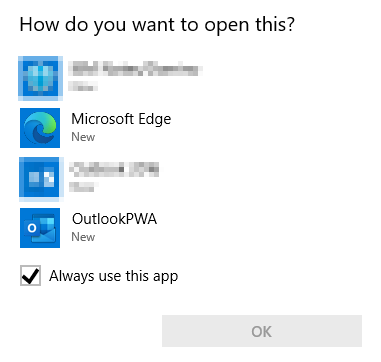
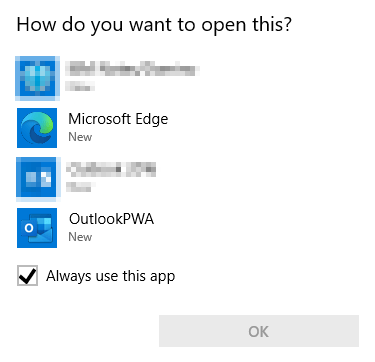
When setting up Outlook PWA as the default mail client, Windows may prompt the user once with “How do you want to open this?”. To avoid this, follow these steps:
For example use the tool SetUserFTA (SetUserFTA – THE file type association utility).
Command example to assign mailto protocol to Outlook PWA: SetUserFTA.exe mailto OutlookPWA
This ensures Windows automatically opens mailto links in Outlook PWA without prompting each user.
Afterwards suppress the “New App Installed” Notification with a HKCU registry Key.
Configure the following registry key via Group Policy:
HKCU\Software\Policies\Microsoft\Windows\Explorer -> "NoNewAppAlert" (DWORD) = 1
This prevents Windows from showing the notification when a new app (Outlook PWA) is registered as the handler for mailto links.
Citrix Profile Management Configuration
To ensure that all relevant files and settings for Outlook PWA are synchronized, make sure the following folders are included in your sync configuration:
"AppData\Local\Microsoft\Edge\User Data\Default\Sync Data"
"AppData\Local\Microsoft\Edge\User Data\Default\Web Applications"
"AppData\Local\Microsoft\Edge\User Data\Default\Local Storage"
"AppData\Local\Microsoft\Edge\UserData\Default\IndexedDB\https_teams.microsoft.com_0.indexeddb.leveldb"
Known Limitations of Outlook PWA
While Outlook PWA offers a lightweight and accessible web-based email experience, users may encounter several functional limitations compared to the full Outlook desktop client. These include for example
Drag and Drop Not Supported: Users cannot drag emails or attachments from Outlook PWA to a Windows folder, nor drag files from Windows into the PWA.
Opening .eml or .msg Files: Outlook PWA cannot directly open standard Outlook email files (.eml or .msg). Users attempting to double-click these files will not be able to view them in the PWA. To solve that limitation use a third-party software that can read .eml and .msg files.
Shared Mailbox Deleted Items: Emails deleted from a shared mailbox do not go to the “Deleted Items” folder of the shared mailbox. There is no PowerShell cmdlet for DelegateWastebasketStyle.
Downloading Multiple Attachments: When downloading multiple attachments at once, users cannot choose the destination folder; files are always saved to the default Downloads folder.
Third-Party Software Integration: Some third-party applications that rely on Outlook desktop integration may not work properly with Outlook PWA. For example, when a third-party software tries to open the Outlook “send email” dialog, it may fail, because Outlook PWA does not expose the same COM or MAPI interfaces as the desktop client.